
As of 8:00 a.m., Dec 17 (UTC), it is now possible to perform an Account Link with Cygames ID!
(If you do not already have a Cygames ID, you will need to create a free Cygames ID to use this feature.)
By linking a Cygames ID to your game data, you can take advantage of the following features and services:
• You can use your Cygames ID to carry over your data to a new device.
• You can purchase in-game items from the Cygames WebStore and take advantage of bargains that may not be available in game. (Paid carats purchased from the Cygames WebStore are not tied to a specific platform and will be available on all devices linked to your game data.)
Please note that Cygames WebStore purchases will be processed in US dollars.
About Cygames ID
Cygames ID is an account system designed for use with various Cygames services. For more information, please refer to the website linked below.
■ Cygames ID Website
(This link will open an external site.)
https://cygames.com/en/
■ About Cygames WebStore
The Cygames WebStore is an online store where you can purchase in-game items and take advantage of exclusive deals.
For more information, please refer to the store web page below.
• Cygames WebStore
(This link will open an external site.)
https://webstore.cygames.com/umamusume/
How to Link with Cygames ID
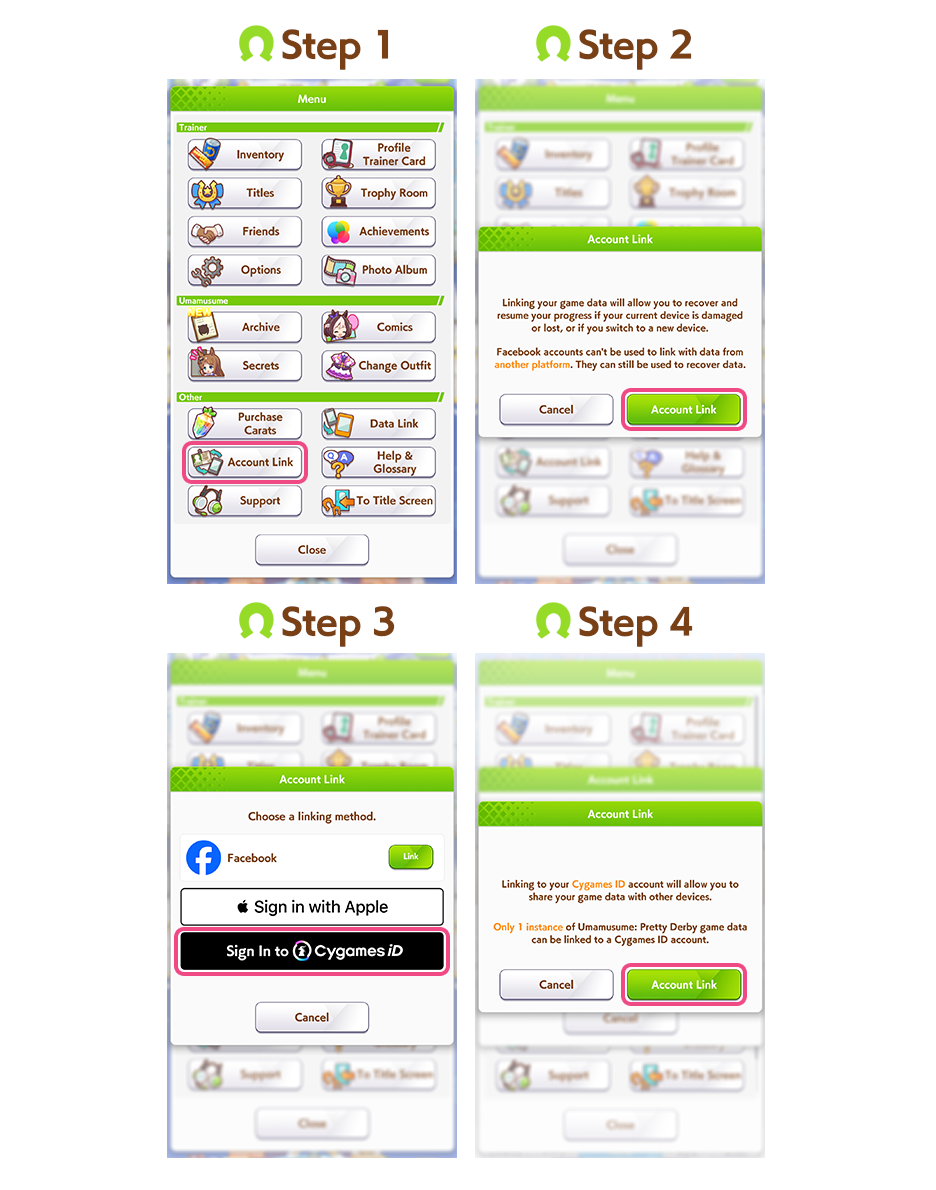
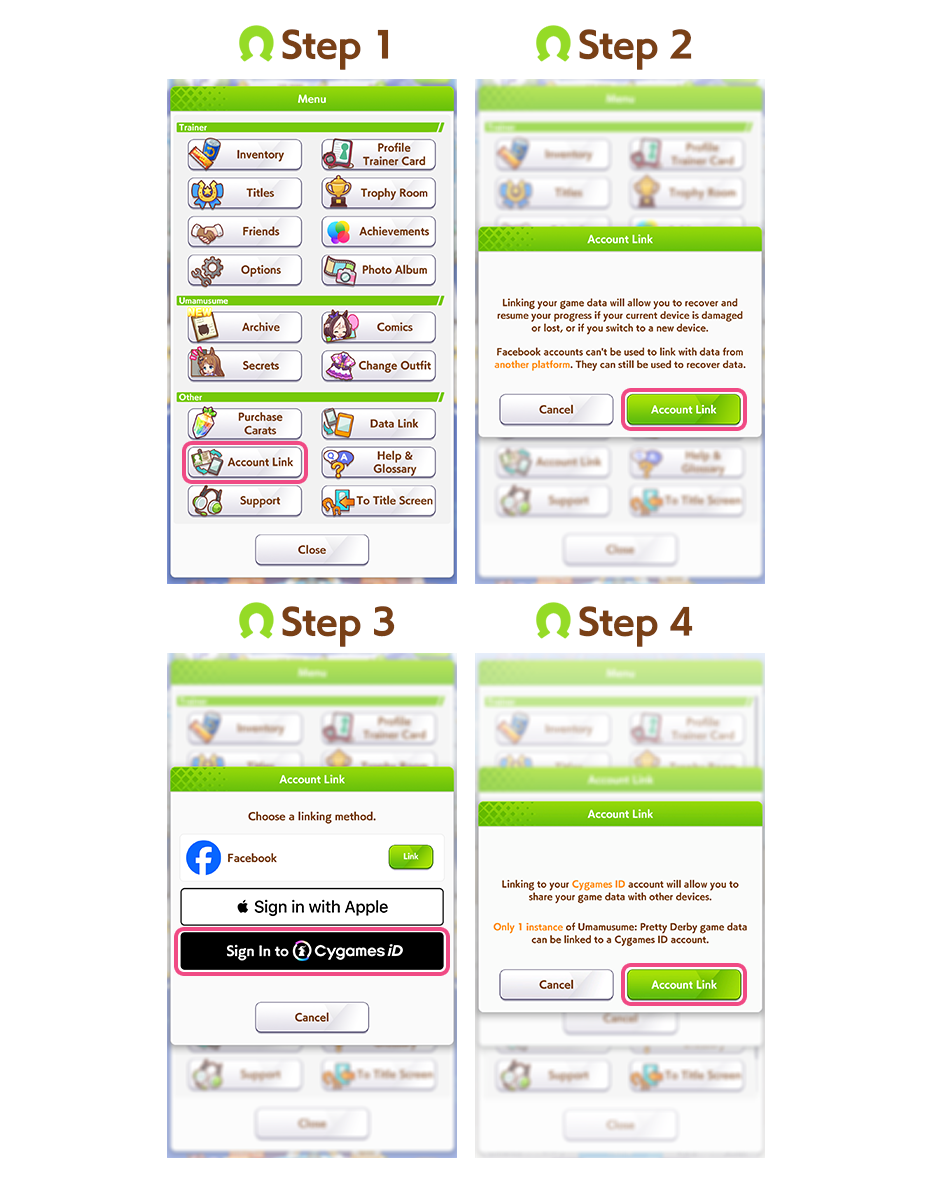
1. In the Umamusume: Pretty Derby app, open the menu from the Home screen, then tap "Account Link."
2. Tap the Account Link button to confirm.
3. Tap "Sign In to Cygames ID."
4. Tap the Account Link button to confirm.
5. Select a sign-in method in the external browser. (If you select a third-party account or email address that is not currently associated with a Cygames ID, a new Cygames ID will be created.)
6. After signing in to your Cygames ID in the external browser, the Trainer ID and trainer name of the account to be linked will be displayed.
7. Tap the OK button to confirm and complete the Account Link process.
(It is also possible to perform an Account Link from the menu on the title screen.)
How to Sign In to Your Cygames ID from the Menu
Important Information
• Each Cygames ID can only be linked to a single Trainer ID.
• When signing in to your Cygames ID, if you select a third-party account or email address that is not currently associated with a Cygames ID, a new Cygames ID will be created. If you would like to use multiple third-party accounts with the same Cygames ID, please link those accounts to your Cygames ID first from the Cygames ID website.
Please note that once you have linked a Cygames ID, linking a different Cygames ID will cause data to be overwritten.
■ Example of Data Overwriting
1. A player links their game data to Cygames ID A which was created using Third-Party Account A.
2. The player then signs into Cygames ID using Third-Party Account B, which has not previously been used with Cygames ID. This causes Cygames ID B to be created.
3. The player then continues to link their game data to Cygames ID B, causing the existing link with Cygames ID A to be overwritten.
After completing Step 3, it will only be possible to use this game data and associated services using Cygames ID B.
If, before performing Step 2, the player first signs in to the Cygames ID website using Cygames ID A and registers Third-Party Account B to this ID, no new Cygames ID will be created and it will be possible to continue using Cygames ID A with this account.
When linking an account, please be careful to check that it is associated with the correct Cygames ID.
• Please note that if you link your game data to a new device on a different platform, paid carats purchased on the previous platform will not be available for use on the new platform. (Paid carats purchased from the Cygames WebStore will remain available on all linked devices regardless of platform.)
• After purchasing in-game items from the Cygames WebStore, they will become available in game when one of the following actions is performed:
1. Opening the Scout screen
2. Attempting to perform a scout
3. Opening the Home screen from the title screen
In each of these cases, a dialog box will appear to confirm that your purchase has been reflected.
• Cygames WebStore purchases are available only after you have completed the in-game tutorial and confirmed your year and month of birth. (If you have not confirmed your year and month of birth, you can do so by pressing the "+" button next to your carat total on the Home screen, or by selecting the Purchase Carats option from the menu.)